Multiple Dashboards
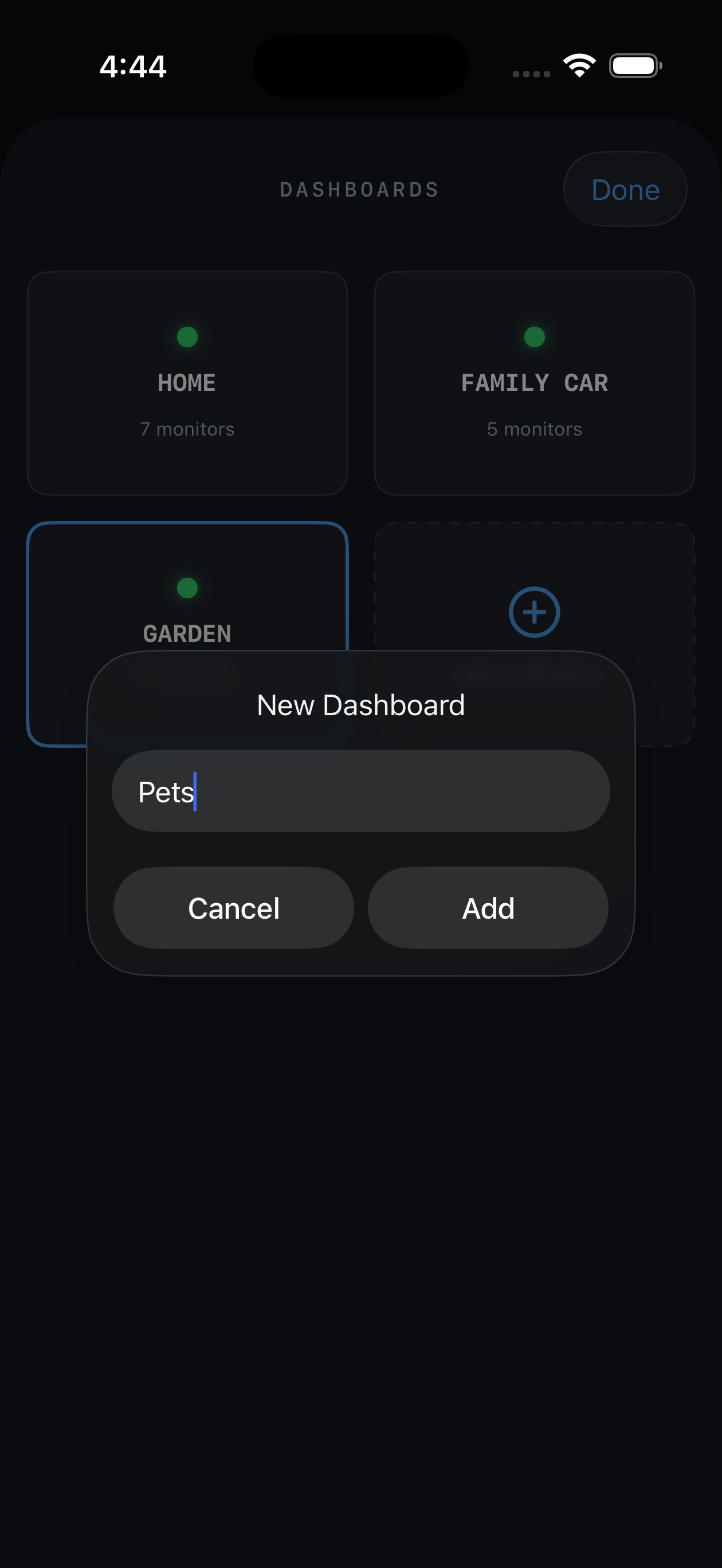
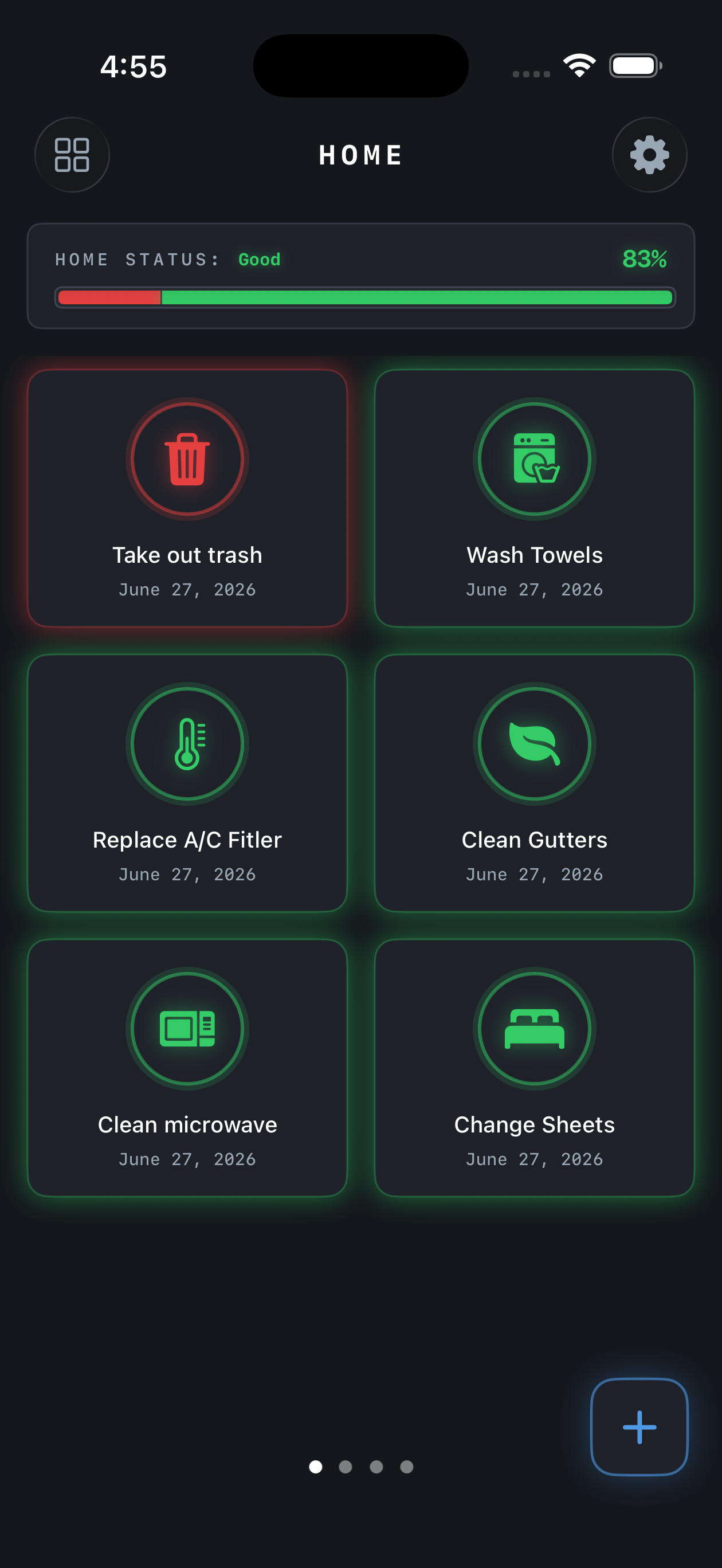
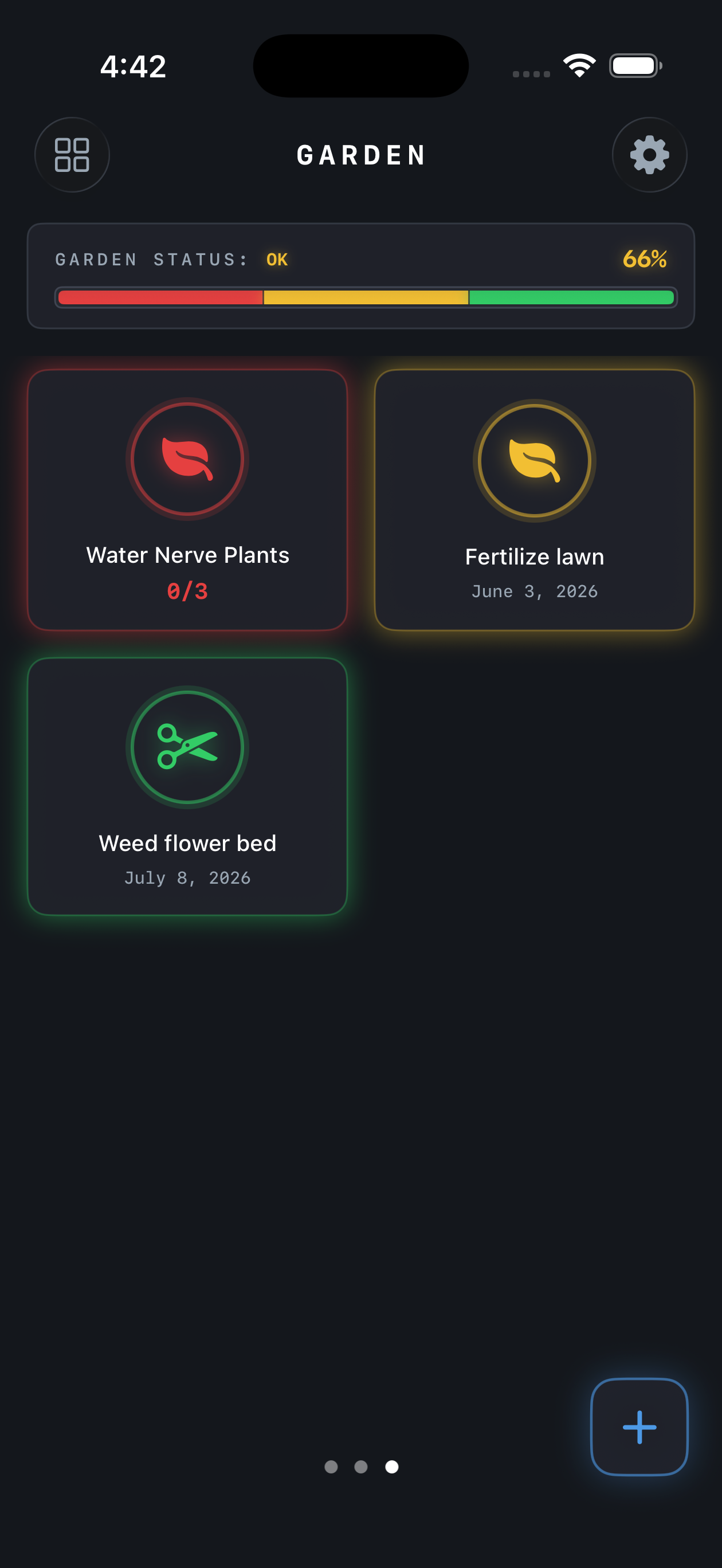
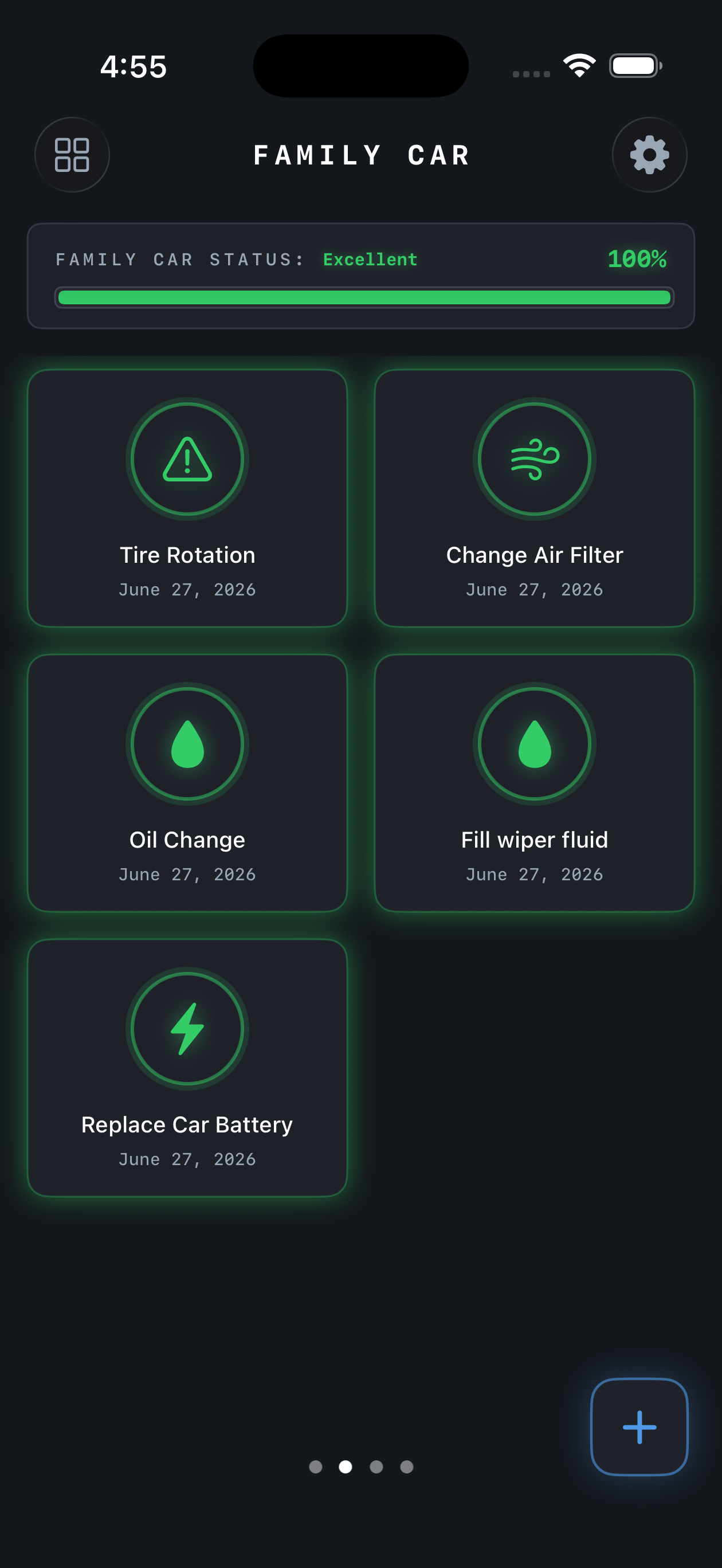
You can choose to create one or multiple dashboards to easily view your different monitors. Separate them by location, project, work, school or anything else! I personally use a dashboard for jobs that need to be done around the house, one for my car, pets, and another for my personal life goals.
Each dashboard can be shared via CloudKit! Your data is stored locally on your device and synced with others via iCloud. Users on a shared dashboard can create monitors and mark them as completed to keep each other accountable!
Monitors
Create custom monitors that represent a chore or problem that needs to be fixed. Monitors thrive on tasks that need to be completed every couple of days, weeks, or months! Some examples include: replacing filters, appliance maintenance, cleaning rooms of the house, oil changes, the list goes on!
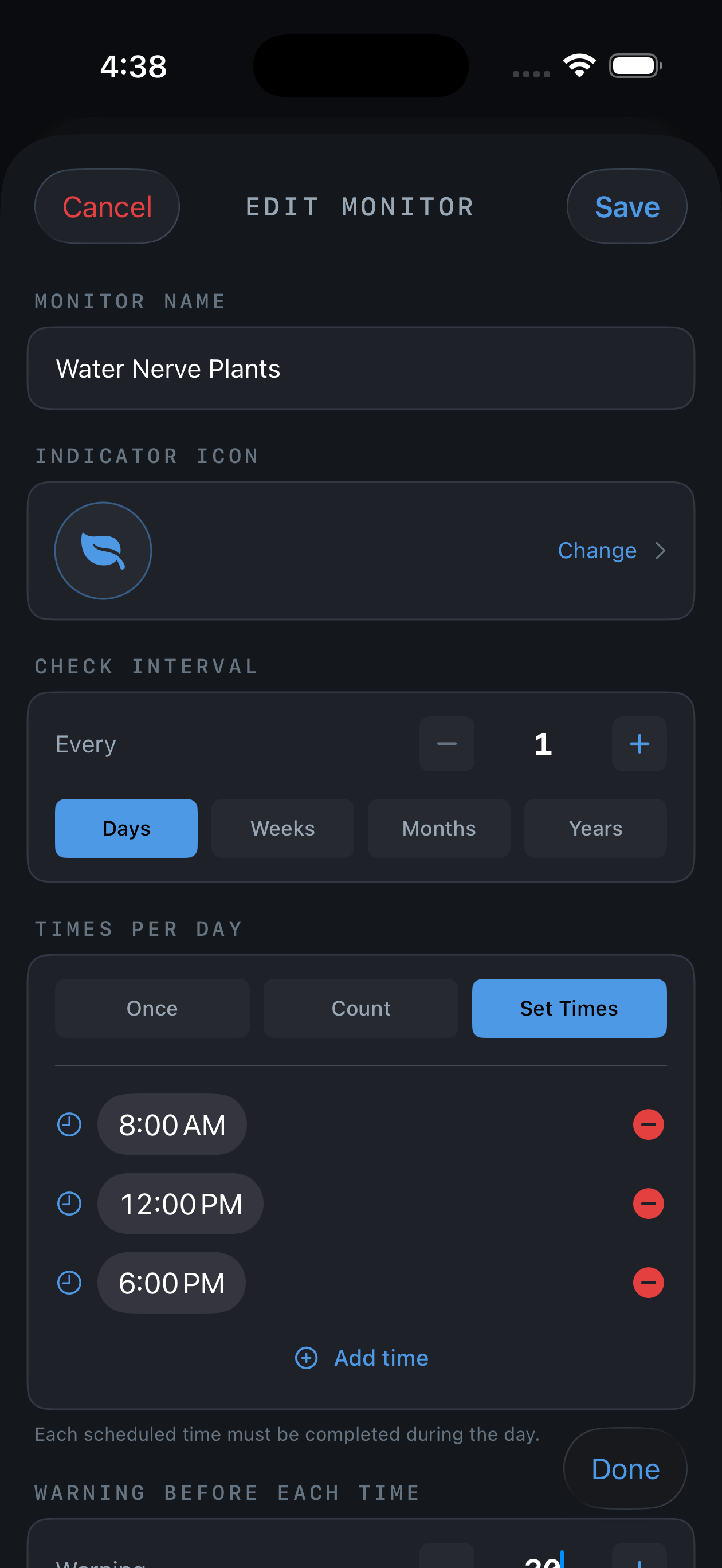
Creating a monitor is as easy as tapping the plus button in the top right corner of the dashboard and selecting "Create Monitor". From there, you can name your monitor, set the frequency of the task, and adjust the warning settings (the time when a monitor will turn yellow indicating it is due soon).
Due to recent feedback, Didido? now allows users to do a task or chore multiple times per day such as feeding a pet, brushing teeth, or taking medications. When users select 'every 1 days', they can set specific times (in hours and minutes), or just an amount of times something needs to be done per day.
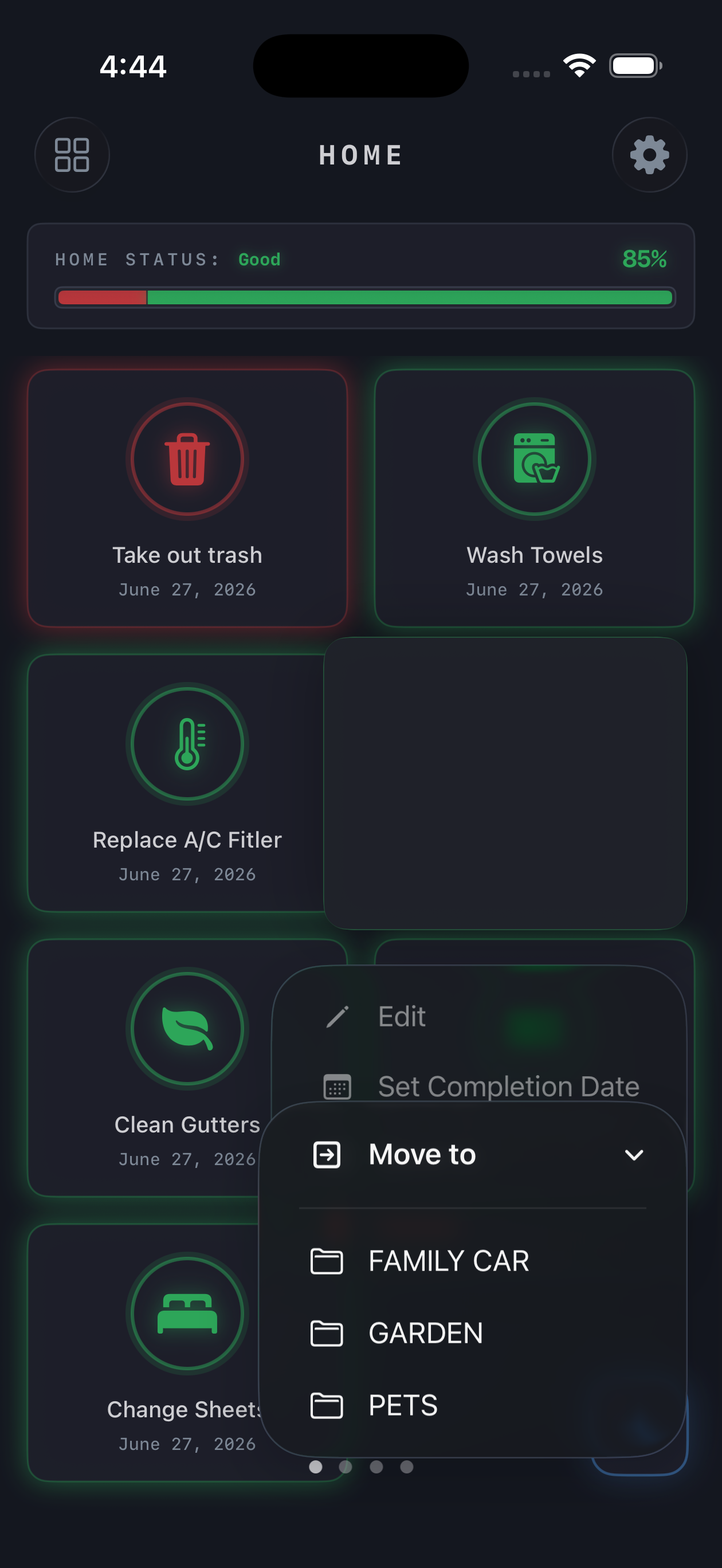
All monitors can be edited or deleted after creation by tapping the monitor name/completion date and then the pencil icon in the top right corner. Monitors can also be moved across dashboards by tapping and holding the monitor and selecting 'move to' and the desired dashboard. Other editing options will also be available while pressing and holding a monitor.
Status Bar
The status bar at the top of the dashboard shows the percent of monitors that are not due yet. When a monitor is about to be due it will turn yellow, and the corresponding percentage of the green part of the status bar will turn yellow. The percentage will not change until the monitor turns red, at which point the yellow part of the status bar will turn red. When a monitor is tapped (not on the name or completion date), the monitor's completion date will be updated to the current date and time and it will return to green.
The dashboard status name will adjust based on the percentage of monitors that are due. If no monitors are due, the status will read 'Excellent', if they are all due, it will read 'Critical'. By clicking the rest of the monitors on the home page of this website, you can interact with the status bar that is also featured within the app.



Optional Notifications
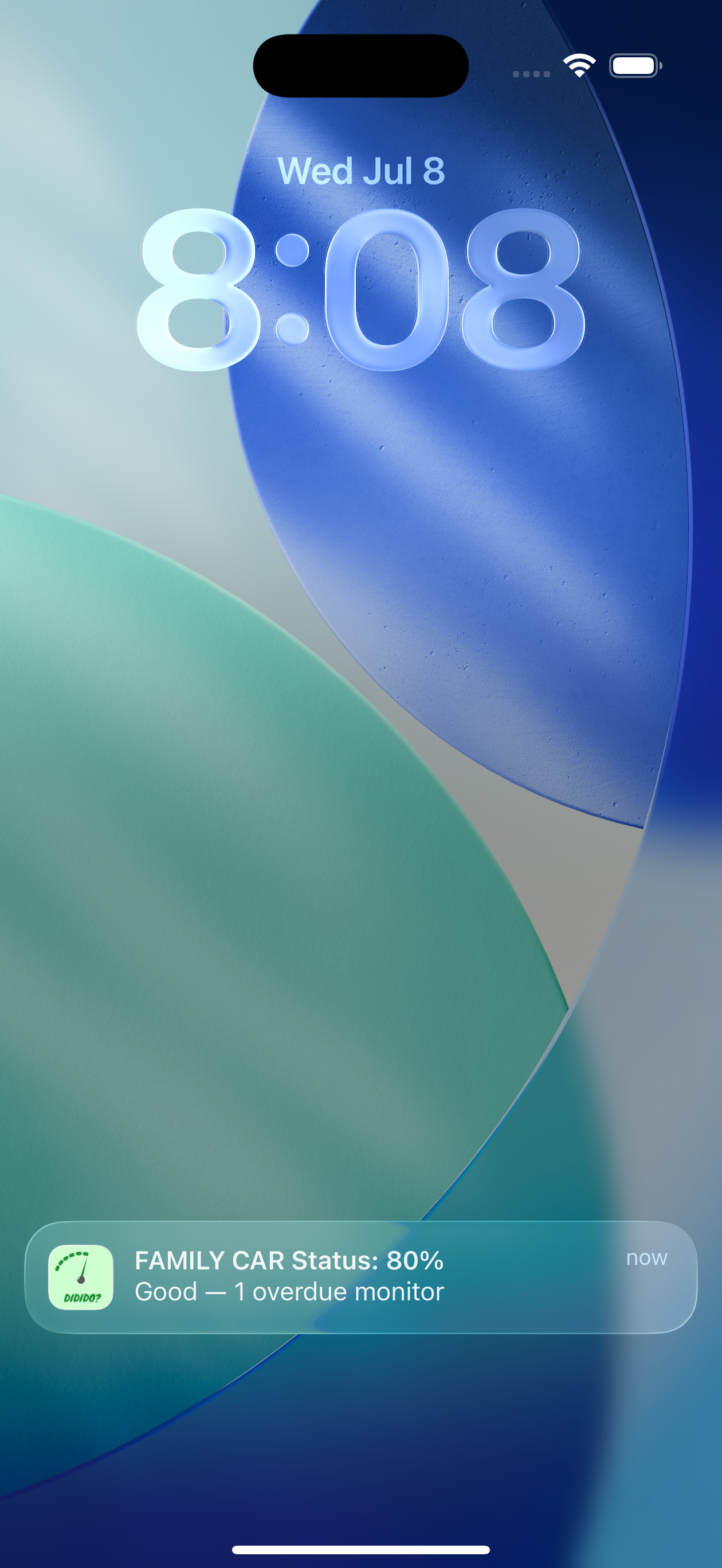
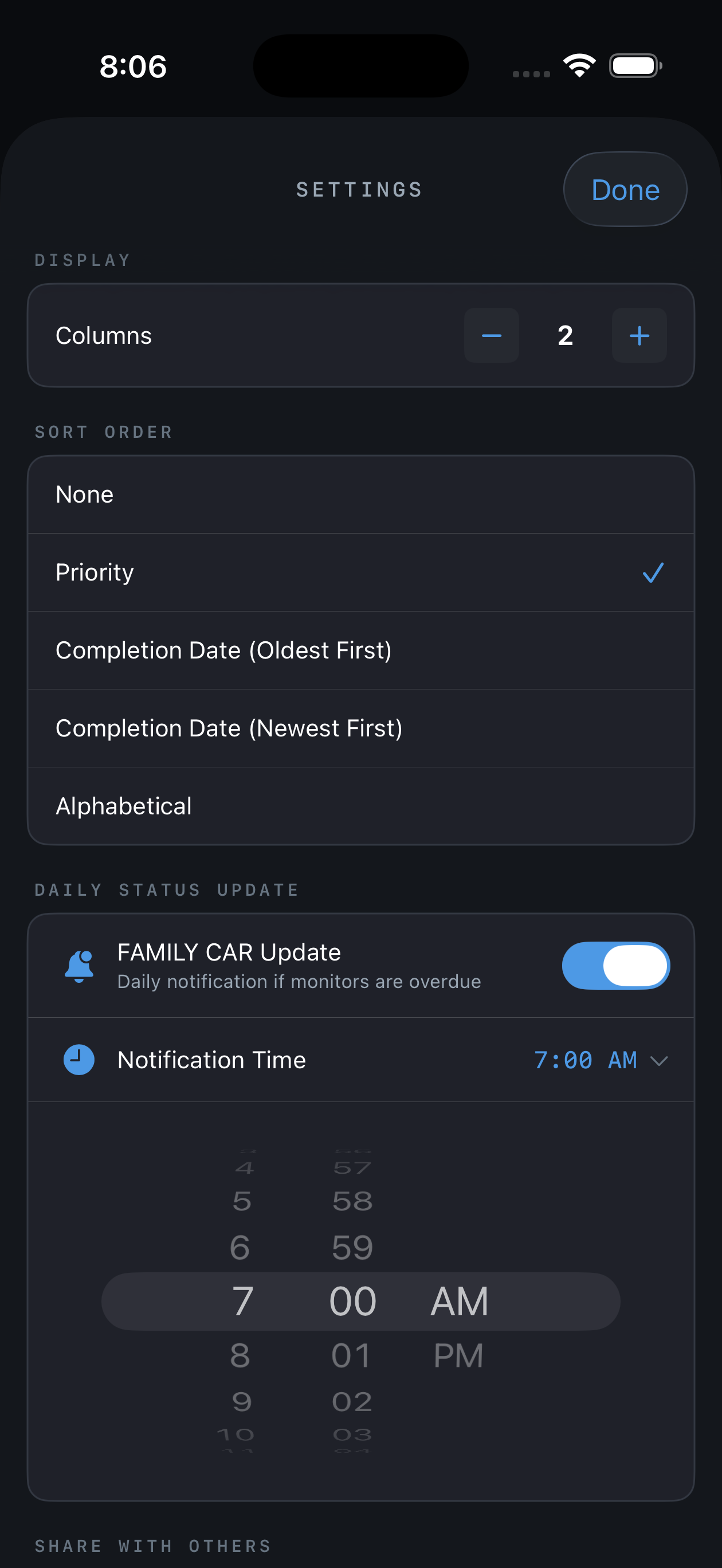
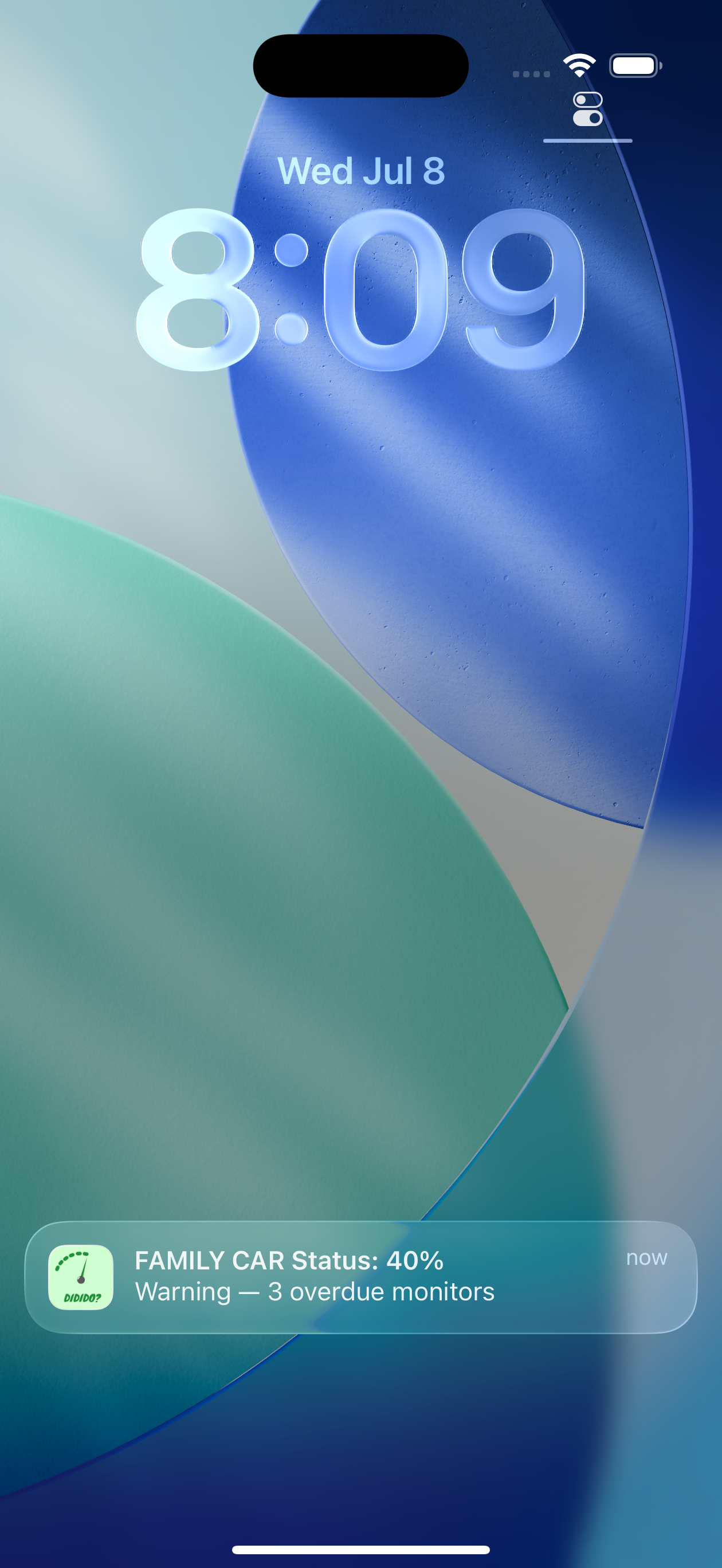
Didido? does not bog you down with notifications like other apps. You select if and when you want to receive a notification with updates about your monitors' status. Pick a time of day you will be available to complete monitors and when the notification hits, you can check what you have to do and mark them as completed! You can have a notification for each dashboard or none at all! The notification will only trigger if at least one monitor on the dashboard is due or overdue.
Soon Didido? will feature a by due monitor option that will send a notification anytime a monitor turns red or yellow, if the user decides to do so.